Archive

Archive for the ‘iPhone’ Category

Mobile Computing Discussion @ UVic Libraries

Here’s a link to the outline of the Mobile Computing Discussion I’m leading today at the UVic Libraries.  Once I’ve cleaned up the notes, I’ll post them below:

Reading List for Mobile Computing and the iPad Discussion:

Read more…

iPad + Velcro = Amazing!

2010/05/27 Rich McCue 2 comments

How can you make your iPad more useful?  Velco!

iPad + Velcro = Amazing

Categories: Work, iPhone Tags: , , ,

Converting YouTube Videos & DVD’s for your kids iPods

2010/03/22 Rich McCue 1 comment

“How can I save a YouTube file and save play it on my kids iPod on our next 12 hour road trip?”  Believe it or not, this is a question that I get fairly frequently as systems administrator at the UVic Law Library, and as the neighbourhood technology guru.  Here are a couple of tools that can make downloading flash videos from YouTube (or other video websites), a fairly easy task:

Step 1: Open Firefox, and download the Video Download Helper plug-in.  This plugin will allow you to save Flash Files to your desktop.  If that is allow you want to do, then you should be able to view the video using a video player like VLC Player.  If you want to convert the flash video into something playable on your iPhone or iPod, then on to the next step.

Step 2: If you are running Windows and want to convert the flash video to an iPhone compatible format, or Windows media format, then I’d suggest you download and install Format Factory.  If you are running Mac OSX, then I’d download Handbrake, to do the conversion job.

DVD Conversion: If all you want to do convert some DVD’s to iPhone or iPod Touch format for the road trip, then install Handbrake on your computer and rip the DVD’s into MP4 files.  This will take a while to convert the videos (almost as long as it would take to watch the video itself), but can be worth while if everyone is able to keep their sanity on the trip.

Have fun converting YouTube videos for your kids iPods for that next long family road trip!

UVic Law Student Technology Survey 2010

2010/03/18 Rich McCue 2 comments

Introduction to the Survey Results

In addition to the technology questions we’ve been asking UVic law students over the past seven years, we decided to ask some extra questions about the increasing important mobile technology that students are arriving at Law School equipped with.  One major change to the methodology of this survey compared to past years is that we sent the survey to all students at the law school, not just first year students.  The response rate was 25% this year rather than close to 100% in previous years.

[Note: if you have problems seeing any graphs on this page, please look at the underlying Google Doc's page for this blog post]

Executive Summary:

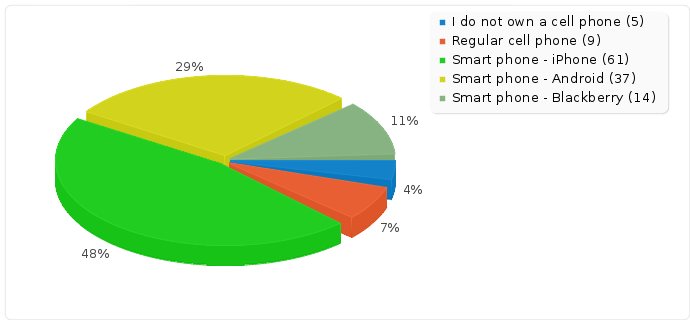
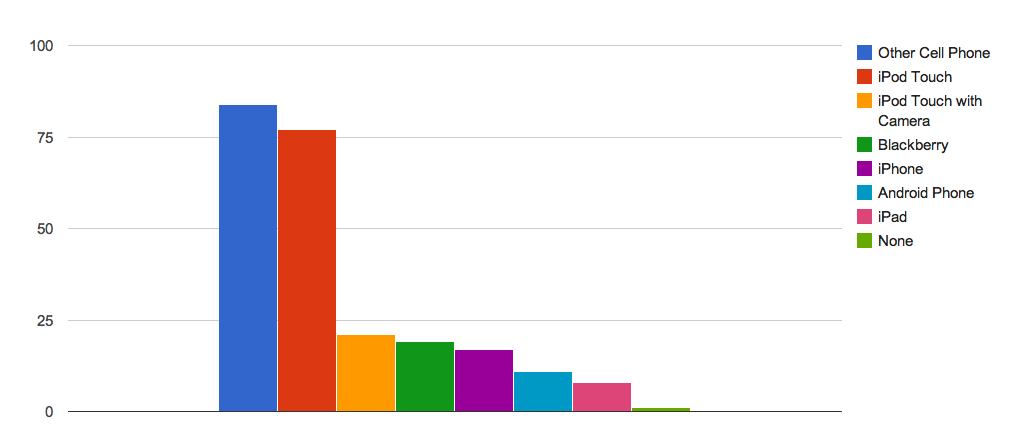
  • 30% of students own “Smart Phones” that can browse the internet.
  • 97% of students own laptops, and over 60% own both a laptop and a desktop computer.
  • 39% of student laptops are Mac’s.
  • The average laptop price dropped to $1,200 from $1400 in 2007, and from $2,100 in 2004.
  • All students now report having high speed internet in their homes.
  • 82% of students bring their laptops to school almost every day.
  • 86% of students own MP3 players capable of listening to recorded lectures.
  • 54% of students use Gmail as their primary email account, 18% use UVic email and 15% Hotmail.
  • 58% of students identified MS Word as their favorite tool for collaborative document editing.  27% chose Google Docs, 5% OpenOffice Writer & 10% “Other”.
  • 100% of students now have access to high speed internet at their homes.
  • 86% of students use Facebook and 65% of those students would like to see law school events and activities published on Facebook as well as through the online faculty calendar of events.

Read more…

Funky Bar Codes Make Smart Phones Smarter

2010/03/12 Rich McCue 1 comment

You may have noticed the new sign outside the Law Library computer lab with the funky looking bar code on it (a QR Code).  What does it do?  It allows our patrons who have a smart phone (like an iPhone or BlackBerry) to download a free application (NeoReader), and then take a picture of the bar code with that app… The app then launches their smart phone’s web browser and takes them to the room schedule page so that they can see when the lab is booked for classes.  While this is useful, it hopefully will be a lot more useful once we are using the Main UVic Library’s room booking system, so that students will be able to check the availability of a room, and then book it from their cell phone while standing in front of the room.

This is just a trial to see what sort of uptake we get from students, and how helpful they find it. Some other possible uses for this technology in the library are:

  • Study room availability and room booking as I already mentioned.
  • Library tours – posters in different areas of the library with the bar codes so that students can access information relevant to that particular space. Audio tours can also be provided this way.
  • Library Maps – Instead of just a map that has, Reference, Reserve, Computer Lab on it, put QR codes for each area that has a web page, so that the patron can go directly to that web page for more information.
  • SMS reference service via a 2D bar code on the library web site.
  • Library Reviews – if someone has done a review on a book or item, a bar code can be put on that item, linking to the review.
  • Event Posters – if there is a web page associated with an event, a bar code linking to that web page can be put on the poster.
  • Link to Phone number on a web page so people don’t have to dial the number on their phone.

While installing the bar code scanner app on an iPhone is quite easy, it remains to be seen how many students have a smart phone capable of reading the bar codes, and how many of those students will actually find this useful. I just sent a survey out to law students, asking in part what cell phone they use, so we should have some good data on the number of students who have a device that can read the 2D bar codes in a week or two.

I have also spoken briefly with Ben Naylor about how the LSS might find this technology useful in their communications with students.  If multiple organizations in the Fraser building begin to use it, and enough students have cell phones that can read the 2D bar codes, we can hopefully make all our lives a little bit easier.

If you want to create a 2D bar code, here is a link to a free QR Code Generator that anyone can use.  Let me know if you have any other ideas on how we could use this technology!

Shopping in Stores, but Purchasing Online… and Saving Lots of Money

Twice in the past two weeks, I’ve gone to stores in order to purchase specific items, but was been shocked at how high the in store prices were.  Both times I quickly pulled out my iPhone and checked the price of the item I needed to purchase at Amazon.ca, and then purchased it online while still in the store.

On my first shopping trip I was looking for toner for my Lexmark 250DN.  At Staples, the toner I needed cost $150!  Can you believe that!  I only paid $250 for the printer, and now they want to charge me $150 for the toner.  A quick check at Amazon.ca showed the exact same toner costing $105.  I ended up saving $45 dollars. If I had just purchased it directly from Amazon in the first place, I would have saved  another $5 or more in gas for the trip to the store.

The second “in store, online purchase” incident took place last night.  Our son had asked us to purchase Assassin’s Creed 2 for the xBox 360 for him.  At EB Games in our local shopping mall, they were asking $70 for the game.  My iPhone informed me that Amazon.ca was selling the game for $57.  The kicker was that they didn’t even have the game in stock, so I simply purchased it from Amazon.ca as we walked away from the store.  I later learned that if you purchased the game from the EB Games online store you would only have to pay $60 (plus shipping… no shipping charges with the Amazon purchase).

New iPhone programs are making this type of comparison shopping easier and easier. RedLaser for example lets you scan bar codes and look up pricing (american pricing only for the time being).  SnapTell is another program that allows you to take pictures of products and get Amazon.com pricing for them, along with product reviews.  The product review can be very helpful, especially if you are not very familiar with the product you are trying to purchase.

There is real value in being able to go to a store and consult with someone about the purchase you are going to make.  There is also real value in being able to take something home right a way, if you need it in a hurry.  If I’m not in a hurry, and I feel that the price difference is too great, I for one am not afraid to walk away from a store and make my purchase online.

Great iPhone App: RunKeeper

I’ve been using RunKeeper for 7 months now and love it!  RunKeeper is an iPhone application that maps your runs for you via the GPS device built into all  iPhone 3G and 3GS’s.  You can look at your iPhone during your run to see what your pace is and how you are doing time wise (see the image to the right for an example of what you would see during a run). The paid version of the application reports your distance and pace through your head phones.

After you’ve finished your run, you can see the route you took on Google Maps on your iPhone, or go to your computer and log on to RunKeeper.com and see a more detailed map of the route you ran. The map on the website is excellent, complete with a graph showing your speed during your run, as well as the altitude you were at.  For me this clearly shows how I slow down when going down hills, and how I speed up at the end of the run as I push to the finish line. Click here for a view of a run I did a few months ago.

There are both free and paid versions of RunKeeper.  The free version has most of the features of the paid version, but $10 is not a high price for this excellent application if you end up using it a lot.  Have run running!

Categories: Other Stuff, iPhone Tags:

Drop Box: File Sharing across the Internet or across the Room Made Easy

Drop Box backs up and synchronizes files between computers.  Great for someone with a desktop and a Netbook for when they’re on the road. http://www.getdropbox.com
Drop Box is also very good for sharing files… can email links to publicly shared files.
Document collaboration

Drop Box synchronizes files between computers across the room or across the internet.  The service is free if you have 2GB of data or less.  For $10 a month you get 50GB of data storage.  I’ve used DropBox for several months now, and have to say that it works great.  It makes it much easier for me to quickly share documents between my Laptop (mac), my Work Computer (windows), and my Home Computer (mac).

Not only does it facilitate file sharing, but it also serves as an excellent backup system. While more expensive than Mozy’s $5 a month backup service, you do get a lot of extra functionality that Mozy does not give you.  DropBox works great on Mac, Windows and Linux computers, which means that it can be used on virtually any computer you own or can currently buy, including one of those cute little Net Books.

Another feature that some might find useful, is the ability to share sub folders with other people for collaboration purposes. As files are modified, previous version are kept so that if necessary you can revert back to a previous version of the document.  Files that are accidentally deleted can also be recovered, unless you manually purge deleted files.

I highly recommend DropBox for people who use multiple computers and need to share files between them.  Good luck!

Categories: WebApps, Work, iPhone Tags: , , ,

Mind Maps: organize your thoughts on your iPhone or iPod Touch

SimpleMind is a Mind Mapping tool that turns your iPhone or iPod touch into a brainstorming, idea collection and thought structuring device. As you can see in the image to the right, you start out with a central idea or concept, and then branch out from there to other sub ideas. Those branches can themselves branch out as far as you need.  For those who like to use mind mapping tools, this is a must have iPhone application.  If you don’t use them, this might be a good introduction to see if they could be useful for your research or project work.

SimpleMind’s Mind Map comes in two editions.  The free Express edition allows you to create and edit mind maps on your iPhone and export them out of the application via jpg pictures.  The Paid Edition, which costs $7 has all the same features as the free edition, and additional ability to send your mind maps to other users via email, or export your mind maps to Freemind format (Freemind is an open source desktop mind mapping application for Windows, Mac and Linux computers) and OPML format.

You have a great idea for a research project with a colleague over lunch: In order to rough out the project so that you can get a better grasp for it’s scope, you map out all the ideas related to the project with your colleague, and then email the mind map to him and yourself in FreeMind format so that you can fill in holes and collaborate further from your desktop computers.

Categories: Work, iPhone Tags:

Read It Later – A wonderful iPhone / Desktop New App!

2009/08/26 Rich McCue 1 comment

Cost: Free - Website: http://readeritlaterlist.com

Read It Later lets you save pages to read later, even without an internet connection.  In FireFox, simply install the “Read It Later” plugin, and magically a little button appears on the top right of your web browser.  When ever you come across an article that you want to read later, simply press the button, and it is saved in your online account.  Later from your iPhone Read It Later app, you can read the article that has been reformatted nicely for your iPhone or iPod Touch.  If it is something that you really like at that point, you can send it to Evernote for indexing and storage.

The Professional version of Read It Later costs $2.99, and allows you to easily post links to the article you’re reading to Facebook, Twitter, Delicious, and even plain old email.

Reading Documents on the Road: You are looking through a bunch of news in the morning and see a number of excellent articles that you don’t have time to read at that moment.  So you click on the “Read It Later” button, then later in the day while you’re waiting at the dentist’s office you read one or two of the articles before having the calculus removed from your teeth.

If you don’t use Firefox, don’t worry, there is an easy way to add a “Read It Later” button to all the major modern web browers (like Internet Explorer, Google Chrome, Opera, etc.).

Categories: Work, iPhone Tags: